
Key Takeaways
- Clear onboarding documentation slashes repetitive customer support inquiries by up to eighty percent.
- Visual step-by-step import instructions bridge the technical gap for first-time tablet stationery buyers.
- Explaining read-only versus writing modes eliminates premature claims of broken planner hyperlinks.
- Delivering interactive PDF guides alongside master planner downloads builds lasting brand authority.
To skip tedious tab linking and launch high-converting planner products immediately, deploying ready-made Digital Planners on plrbizhub.com provides tested interactive assets that eliminate creation fatigue. These commercial templates let creators set up professional digital stationery shops within hours.
The Critical Role of Customer Onboarding in Digital Product Sales
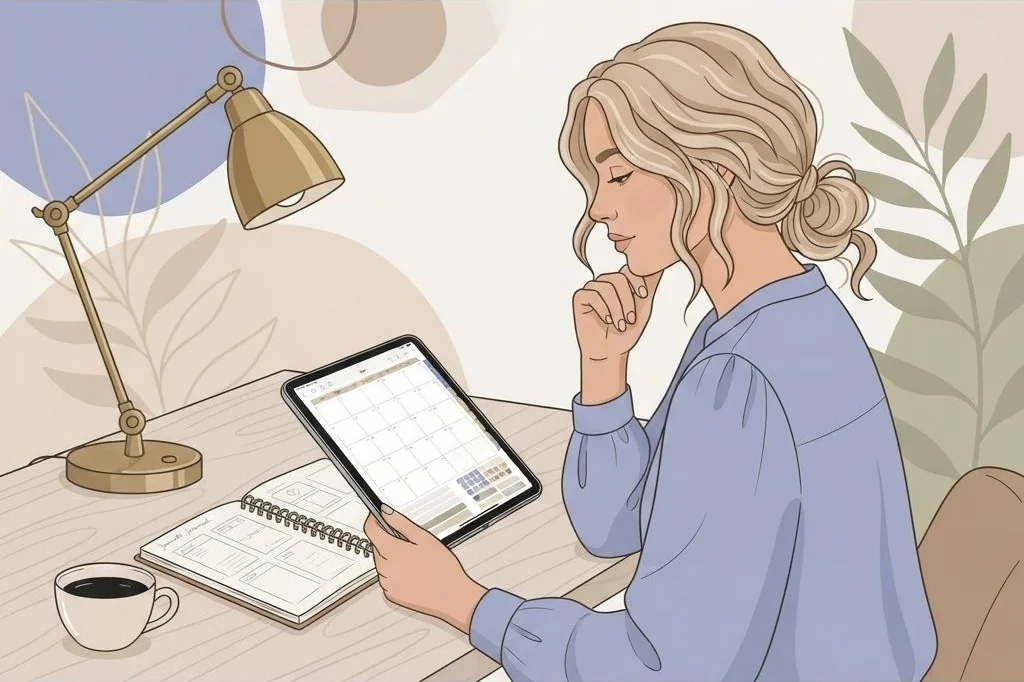
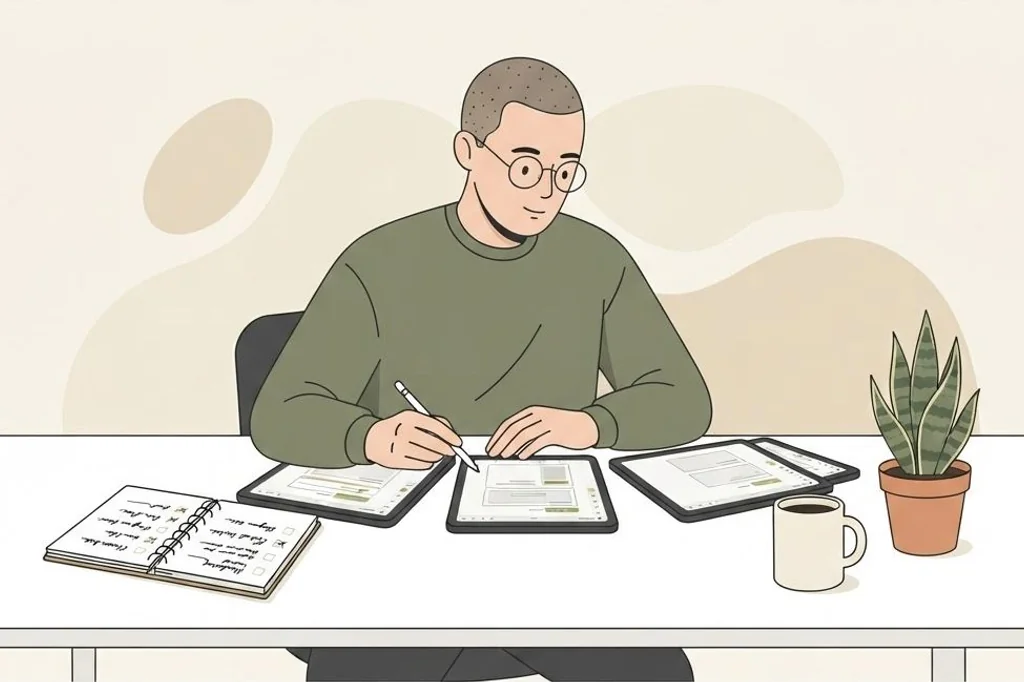
When an excited customer purchases a digital planner from your online shop, their post-purchase experience dictates whether they become a repeat brand evangelist or leave a frustrated one-star review. Many buyers are completely new to digital planning. They know they have an Apple Pencil and want to organize their lives, but they have never imported an interactive PDF into an app. Creating comprehensive digital planner customer onboarding documentation transforms beginner confusion into immediate customer delight.
Without onboarding instructions, customers run into predictable roadblocks. They open the file in the default Safari browser and wonder why they cannot write notes. They open it in GoodNotes, try to tap a tab while in pen mode, and immediately email support claiming the links are defective. By including a dedicated, beautiful user guide with every purchase, you proactively answer customer questions before frustration sets in, protecting your brand reputation and saving dozens of support hours every week.
Essential Elements of a High-Impact Getting Started Guide
A successful onboarding guide is not an intimidating sixty-page technical manual. It is a visually engaging, four-to-six-page quick-start companion designed to guide the buyer from raw download to their first handwriting stroke in under five minutes.
I structure onboarding documentation into four essential sections:
- Welcome and Package Inventory: A warm greeting thanking the customer, accompanied by a bulleted checklist of everything included in their purchase (PDF Planners, Digital Sticker sheets, GoodNotes elements, Cover variations).
- Step-by-Step App Import Walkthrough: Clear screenshots showing how to download the file from mobile Safari, save it to the Files app, and import it into GoodNotes, Notability, or Penly.
- The Essential “How to Click Links” Tutorial: A prominent visual callout explaining the difference between writing mode and read-only navigation mode in tablet apps.
- Troubleshooting FAQs and Direct Contact Link: Clear answers to the top five customer confusion points, paired with a direct email link to your customer support portal.
If you sell commercial templates at PLR Biz Hub, reviewing the included documentation assets in 300+ PLR Digital Planners, Journals & Trackers – Canva Templates Bundle shows how professional digital publishers package onboarding materials alongside master files.
Demystifying App Modes for Tablet Beginners
Over ninety percent of customer complaints regarding “broken links” stem from a single misunderstanding: tablet app mode switching. Customers open GoodNotes with the pen tool selected and tap their Apple Pencil directly onto the “March” tab. When a black ink dot appears instead of jumping to March, they assume the file is broken.
Your onboarding guide must demystify this mechanism with crystal clarity:
- GoodNotes Instructions: Include a cropped screenshot of the top right toolbar highlighting the crossed-out pencil icon. Explain that tapping this button activates Read-Only mode, allowing instant single-tap hyperlink navigation. You can reference our technical breakdown on structuring interactive PDF planners for GoodNotes navigation.
- Notability Instructions: Explain how to use the Hand tool for navigation or how to tap links with a bare finger while keeping the pen tool active, as detailed in our guide on Notability digital planner optimization tips.
- Android Instructions (Penly / Samsung Notes): Show Android users how to toggle the edit mode icon in Penly or enable web and document links inside Samsung Notes settings.
For official operating system documentation regarding file management, the Apple iPad User Guide on Files and Drag-and-Drop provides comprehensive background on iOS file workflows.
Handling Cloud Storage and Unzipping Workflows
Digital planner bundles frequently exceed standard email attachment limits, requiring delivery via ZIP archives or cloud storage portals like Google Drive and Dropbox. While unzipping a folder is second nature to tech-savvy creators, many tablet users do not know how to unpack a ZIP file on an iPad.
To prevent download friction, provide foolproof instructions for mobile file unpacking:
- Use Native iOS Files App: Instruct users to tap the downloaded ZIP archive once inside the iOS Files app; iPadOS automatically unzips the folder and creates an accessible subfolder containing their PDF and sticker files.
- Browser Recommendation: Explicitly advise customers to download purchases using Safari rather than embedded social media in-app browsers (like Instagram or TikTok browsers), which frequently block file downloads.
- Separate Sticker Downloads: Provide digital stickers as both individual pre-cropped PNGs and a compiled GoodNotes (.goodnotes) collection file so users can choose their preferred importing method.
We discuss similar friction-reduction techniques for sales presentations in our guide on Q&A and objection handling slide frameworks.
Format Delivery: PDF Guides Versus Video Walkthroughs
While an interactive PDF guide is the primary deliverable, supplementing your written documentation with a two-minute video tutorial dramatically strengthens buyer trust. People absorb technical information differently; visual learners prefer watching someone perform the exact finger taps on screen.
Record a brief unlisted YouTube or Loom video showing:
- Downloading the sample file from your storefront order confirmation screen.
- Tapping the file to open it in GoodNotes as a “New Document”.
- Toggling Read-Only mode and tapping through three monthly tabs.
- Dragging and dropping a digital sticker widget from split-screen view.
Embed a prominent clickable button labeled “Watch Video Tutorial” on Page 1 of your onboarding PDF guide. This thoughtful touch virtually eliminates first-day refund requests and generates enthusiastic customer reviews praising your customer service.
Onboarding Guide Pre-Release Quality Audit
Before attaching your onboarding PDF to your commercial download products, run through this final checklist:
- Direct Support Link Check: Confirm that the customer support email link in the footer opens an active mail draft with your correct support address.
- Screenshot Clarity: Ensure all screenshots showing app toolbars are crisp, legible, and match current versions of GoodNotes and Notability.
- No Expired Cloud Links: If linking to Google Drive folders for bonus sticker packs, confirm that folder permissions are set to “Anyone with the link can view”.
- Mobile File Weight: Keep the onboarding PDF under five megabytes so it loads instantly even on weak cellular connections.
Frequently Asked Questions
Why do customers complain that digital planner links do not work?
The vast majority of complaints happen because the user is in writing mode inside their note-taking app. They need to toggle on Read-Only mode to activate hyperlink navigation.
How should digital stickers be delivered alongside planners?
Provide stickers in two formats: a pre-cropped GoodNotes (.goodnotes) sticker collection file for GoodNotes users, and a zipped folder of transparent PNGs for Notability and Android tablet users.
What is the best way to distribute large digital stationery bundles?
Deliver a small PDF access document containing direct download links to a secure Google Drive or Dropbox shared folder. This avoids store platform file size upload limitations.
Should onboarding guides include video links?
Yes, embedding a link to a two-minute video walkthrough showing how to import and use the planner significantly reduces customer confusion and support inquiries.