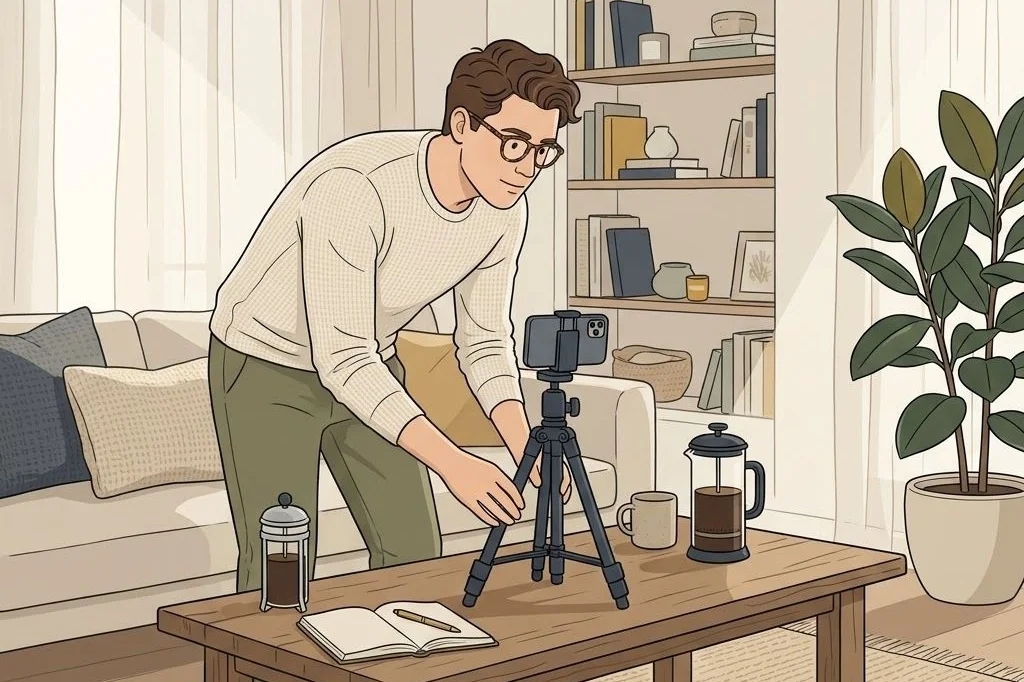
When you browse viral faceless feeds on social media, you immediately notice a distinct visual cohesion. The clips feel warm, atmospheric, and undeniably cinematic – as though they were filmed on 35mm motion picture film rather than a standard smartphone. Early in my content creation career, my raw phone footage looked shockingly flat, cool-toned, and uninspiring. No matter how clever my caption was, the visuals screamed low-budget.
The secret that refined my entire digital brand was understanding the craft of faceless reels color grading aesthetic treatments. Color grading is not about slapping gaudy filters over your video; it is about sculpting light, balancing color temperature, and evoking specific emotional states. In this practical tutorial, I will reveal the exact tone curve tweaks, shadow adjustments, and LUT presets I use to turn ordinary mobile clips into warm, luxury aesthetic assets.
Key Takeaways
Essential color grading principles for cinematic faceless reels:
- Warm, muted color palettes establish instant luxury and calm emotional resonance on mobile displays.
- Subtle S-curve contrast adjustments create rich shadows without crushing fine texture details.
- Desaturating greens and harsh neon tones while warming orange highlights produces a signature quiet luxury vibe.
- Applying reusable adjustment layers guarantees visual consistency across multi-clip video batches.
Ready-made Social Media Templates on plrbizhub.com come professionally color-graded with warm cinematic tones and cohesive visual palettes, removing the technical guesswork so you can maintain a stunning Instagram aesthetic consistently.
Understanding Color Psychology in Short-Form Video
Colors are not merely decorative; they trigger immediate physiological and emotional responses in human viewers. In the study of color grading in cinematography, directors have long utilized precise color palettes to establish tone, genre, and social status before a character speaks a single line.
For faceless digital product brands, your color grading communicates your brand value proposition. Cool, blue-tinted clips often feel sterile, technological, or corporate. In contrast, warm earthy tones – soft caramel, terracotta, oatmeal cream, and muted olive – evoke warmth, comfort, and approachable luxury. When viewers scroll through stressful news feeds, landing on a warm, golden-hour aesthetic reel creates an instant feeling of peaceful sanctuary.
This emotional refuge keeps viewers watching. The aesthetic comfort acts as a subconscious endorsement of your authority: a creator who presents such immaculate, intentional visual taste must naturally offer premium, dependable digital products.
The Four-Step Color Grading Workflow for Beginners
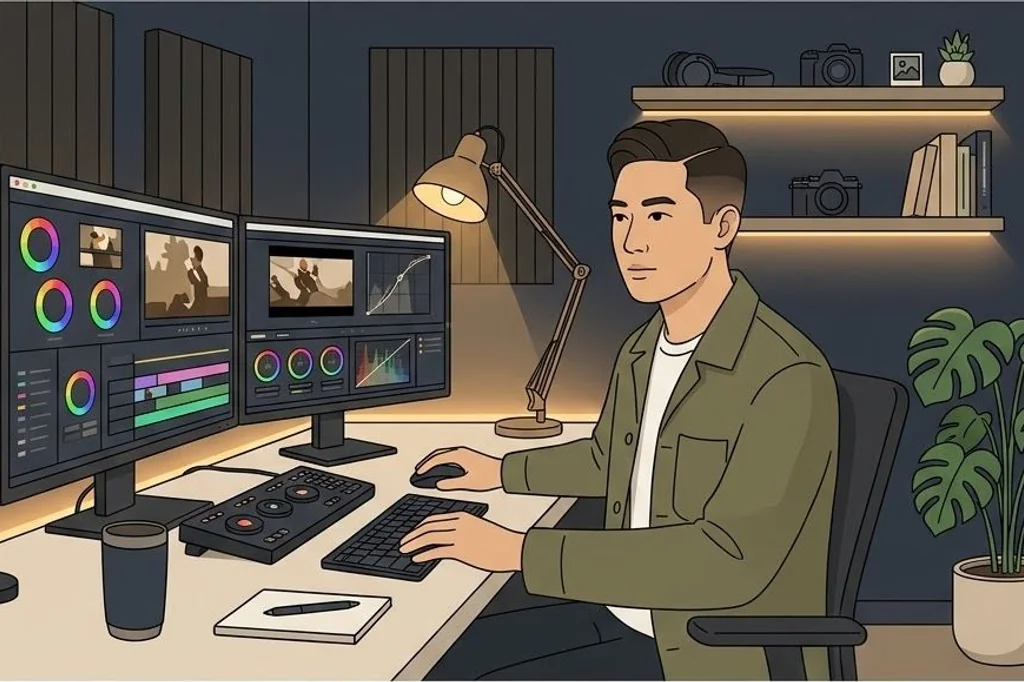
You do not need expensive desktop workstations like DaVinci Resolve or Hollywood color grading consoles to achieve cinematic quality. You can execute this complete four-step color grading protocol directly inside mobile editors like CapCut, VN, or InShot.
Step 1: Balance exposure and contrast curves
Begin by correcting the lighting foundation. Raw mobile sensors often overexpose highlights in an attempt to make images bright. Lower the exposure slightly (around negative five to ten percent) to protect highlights on skin, white paper, or ceramic mugs. Next, apply a gentle S-curve to your tone controls: lift the shadows slightly to reveal texture, while pulling down the deep blacks to introduce depth without harsh clipping.
Step 2: Adjust color temperature and tint
Push your overall color temperature toward the warm side by adding plus five to plus twelve points of warmth. If your indoor lighting has an unpleasant greenish fluorescent cast, add a slight touch of magenta tint (plus three to plus six) to restore clean, healthy skin tones and warm wood grains.
Step 3: Target HSL channels for aesthetic maturity
The Hue-Saturation-Luminance (HSL) panel is where the magic happens. To create that sophisticated quiet luxury look, reduce the saturation of pure green channels by fifteen to twenty-five percent. Bright lime-green houseplants look cheap and distracting; desaturating them turns them into elegant olive sage. Next, boost the luminance of orange and yellow tones slightly to make candlelight, sunlight beams, and wooden tabletops glow with inner warmth.
Step 4: Add subtle film grain for organic texture
Digital smartphone video can look unnaturally sharp and clinical. Adding a subtle layer of organic film grain (around five to eight percent intensity) blends pixel edges, hides minor digital compression artifacts, and imparts a nostalgic, tactile texture reminiscent of vintage art house cinema.
Managing Color Temperature Across Varied Mobile Screens
A frequent trap that snares new video editors is grading solely on a high-end desktop monitor with calibrated color profiles. While your footage might look stunning on a professional IPS display, ninety-nine percent of your audience will consume your content on OLED or AMOLED smartphone screens set to varying brightness levels with night shift filters enabled.
To ensure universal appeal, test your exports across multiple consumer devices before queuing them into your content calendar. Notice how midtones render when device brightness is dropped to thirty percent. If the text becomes illegible or the shadows become muddy black blotches, lift your midtone exposure curve slightly. Designing for worst-case viewing conditions ensures your aesthetic remains inviting and legible anywhere.
Additionally, beware of aggressive saturation clipping. When adjusting warm orange and gold hues, keep skin tones and wood textures within natural gamut boundaries. Over-saturating highlights introduces harsh digital banding artifacts on compressed social uploads, shattering the organic filmic illusion.
Accelerating Workflow With Master Presets
While manual grading gives you total creative control, manually tweaking dozens of individual video clips every week quickly becomes a bottleneck. High-volume digital shop owners utilize pre-built LUTs and adjustment presets to maintain consistency across entire product collections.
If you prefer skipping the steep technical learning curve altogether, our 1000+ PLR Faceless Reels – Aesthetic Videos Bundle provides over a thousand pre-graded, cinematic aesthetic video clips categorized by color mood, ready to plug directly into your marketing funnels with zero color tweaking needed.
Maintaining brand coherence is the foundation of digital product success. As detailed in our comprehensive guide on how to rebrand PLR products effectively, visual polish allows you to command higher price points while building recognizable market authority. To preserve maximum clarity during export, always configure your mobile editing timeline to match the native frame rate of your source footage. Avoid exporting at 4K resolution unless your platform explicitly requires it; most social platforms compress 4K mobile uploads aggressively, resulting in pixelated artifacts and stuttering playback. Exporting clean 1080p vertical video at a high bitrate (between 15 and 20 Mbps) ensures silky-smooth playback and razor-sharp text legibility on all devices.
For additional marketing templates and scaling playbooks, visit the full catalog on plrbizhub.com.
Frequently Asked Questions
Do I need complex Hollywood editing software to color grade aesthetic reels?
No. You can achieve gorgeous moody tones directly on your phone using free mobile apps like CapCut, VN Editor, or Lightroom Mobile with custom LUT presets.
What is a LUT and how does it speed up video editing?
A Look-Up Table (LUT) is a pre-calculated mathematical color profile that instantly remaps shadows, midtones, and highlights with a single click, providing consistent visual style.
Why do so many mobile aesthetic videos look noisy or washed out?
Over-saturating shadows or aggressively crushing blacks without adequate source lighting introduces digital grain and color banding, ruining the cinematic feel.
How can I maintain color consistency across clips shot in different locations?
Standardize your white balance during capture and use a master adjustment layer across all clips in your timeline to unify temperature and contrast curves.